Jotform Follow Up Boss integration
Jotform to Follow Up Boss through Zapier: each submission as an inquiry, a new or updated contact, or a tag, without firing action plans by accident.

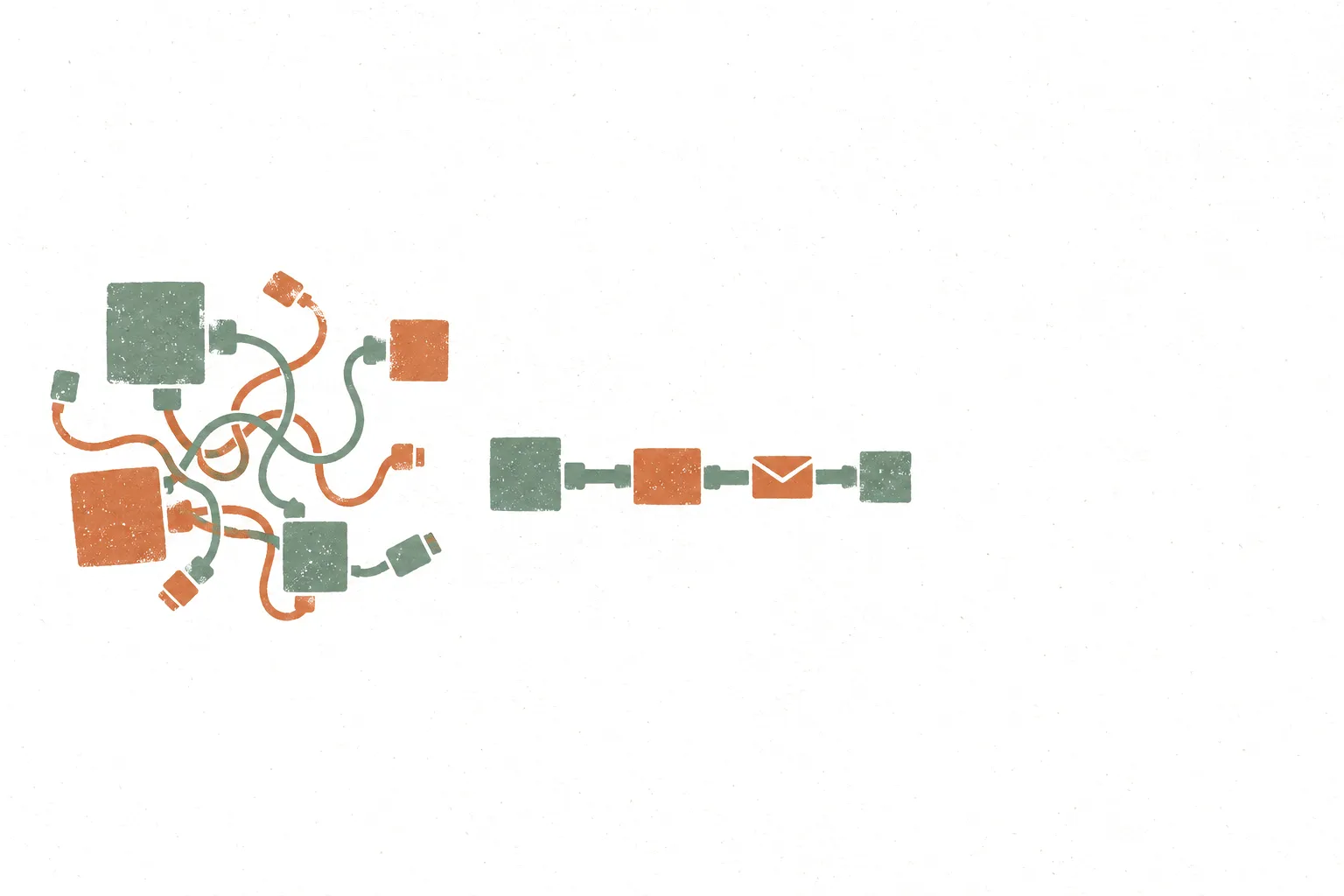
Jotform has no direct connection to Follow Up Boss; it reaches it through Zapier. Jotform's integration page lists three workflows: send each submission as a new inquiry or website event, create or update a contact without triggering action plans, and add tags to a contact.
The choice between the first two matters. An inquiry or website event is treated as a new lead and runs the follow-up the team has set up for it. Create or update contact, as Jotform's page names it, adds the person without triggering action plans, which suits forms from people already in the CRM.
This page covers the setup from the Form Builder, which workflow fits which form, and what to check before turning it on.
How Jotform and Follow Up Boss connect.
- 01
Start from the Form Builder
Open Settings, then Integrations, and search for Follow Up Boss. The option is powered by Zapier, so the next screen asks for a Zapier login and then a Follow Up Boss login.
- 02
Pick the workflow
Choose the new inquiry or website event workflow for lead forms, create or update contact for forms from existing contacts, or add tags to mark where a contact came from.
- 03
Map the fields
Map name, email, phone and message to the Follow Up Boss fields. Submit one complete test entry first, so every field has a value Zapier can see when mapping.
- 04
Test, then publish
Map the form fields to the Follow Up Boss fields, then click Test Step and check that the test record appears in Follow Up Boss. Only then publish the Zap.
What Jotform plus Follow Up Boss is actually good at.
- 01
Website lead form
A buyer or seller inquiry form sends each submission as a new inquiry, so the lead enters Follow Up Boss the same way as leads from other sites and gets the same follow-up.
- 02
Showing requests
A showing request form for a listing creates the inquiry with the property address in the message, so the agent sees which listing the lead asked about.
- 03
Updates from past clients
A referral or review form from past clients uses create or update contact, so the record is updated without restarting an action plan meant for new leads.
- 04
Tag by source
A second step adds a tag such as the campaign or open-house name, so contacts can be filtered later by where they signed up.
Edge cases that bite in production.
Action plans fire on the wrong forms
Sending every form as a new inquiry restarts lead follow-up for people already in the pipeline. Use create or update contact for forms aimed at existing contacts.
A deleted field still in use
Jotform support traced one failed setup to a form field that had been deleted but was still referenced. After removing or renaming fields, reopen the Zap and check the mapping.
Zapier plan timing
Jotform's Zapier guide notes that, depending on the Zapier plan, data may not arrive instantly. Leads that need a reply within minutes need a plan that runs Zaps promptly.
Old Jotform app in older Zaps
Per Jotform's Zapier guide, Zaps built on the old Jotform app (1.3.2) stopped working after 3 June 2024. A Zap that went quiet may need the Jotform step rebuilt on the current app.
Hit one of these edge cases?
A free 20-minute call to look at what the form sends to Follow Up Boss and the simplest way to make it hold, or send the details first.
No form needed: just email hi@workflowautomationkits.com your form URL
“Buri demonstrated exceptional technical expertise, professionalism, and attention to detail. He offered thoughtful suggestions, identified potential challenges before they became issues, and provided creative, effective solutions that kept the project on track.”
When Jotform plus Follow Up Boss isn't the right call.
If the form only needs to land as a lead, check whether a Follow Up Boss form or lead source already covers it before adding Zapier. When the form must decide between pipelines or agents by answer, add Zapier filters or paths, or route with a webhook. For forms that carry health or payment data, keep that data out of the CRM notes.
Automation kits built on Follow Up Boss.
Property Showing Request Kit
Showing requests that route to the right agent: property picker, zip-coded assignment, and auto-scheduling

Lead Capture → CRM Kit
Lead capture with scoring, dedup, CRM sync, and Slack alerts on the ones worth interrupting for.
Discovery Call Booking Kit: Pre-Qualified, Routed, and Booked in One Form
Discovery Call Booking Kit: pre-qualify by budget, timeline, and role, then route into a calendar without paying Calendly Teams
Questions asked before setting this up.
Does Jotform integrate with Follow Up Boss?
Yes, through Zapier. Jotform's integration page lists workflows for new inquiries or website events, creating or updating contacts without action plans, and adding tags. There is no direct native connection.
How do I send Jotform leads to Follow Up Boss?
In the Form Builder, open Settings, then Integrations, search for Follow Up Boss, log in to Zapier and Follow Up Boss, choose the new inquiry workflow, map the fields, test and publish.
Will Jotform leads trigger action plans in Follow Up Boss?
A new inquiry is handled as a new lead. To add or update a contact without triggering action plans, use the create or update contact workflow that Jotform's page lists.
Do I need a Zapier account?
Yes. The Follow Up Boss option in Jotform is powered by Zapier, so it needs a Zapier account alongside the Jotform and Follow Up Boss accounts.
Want this wired up without the reading?
Free 20-minute call to pick the workflow that fits the Follow Up Boss setup and scope what it would take to build. Sending the details first works too.
No form needed: just email hi@workflowautomationkits.com your form URL
Bring the work your team still does by hand.
One 20-minute call: how it runs today, what an agent or automation would change, and whether it is worth building.