Loading…
Productivity · Integration Guide5.0/5.0 on Upwork · Top Rated
Jotform Google Drive integration
Jotform to Google Drive, wired so uploaded files land in the right folder with names you can actually find later.
Buri IlterEx-Jotform engineering lead · LinkedIn
The Jotform to Google Drive integration does the boring, useful thing: it takes the files people upload through your form and the PDF copy of each submission, and drops them into a Google Drive folder. No downloading attachments one by one, no living inside Jotform's submission view. For most teams, this one just works once it's set up, and that's the point of it.
The few places it bites are about organization and access, not reliability. Everything can land in one undifferentiated folder until you tell it otherwise. File names can come out generic enough that you can't tell submissions apart. And the folder's sharing settings, not the integration, decide who can actually open what landed there. This page covers how it saves files, how to keep the folder navigable, and the handful of gotchas worth knowing before you rely on it.
After fielding integration tickets for years at Jotform, Google Drive stood out as the lowest-drama of the bunch: people set it once and forgot it. The few tickets that did come in were about folder structure and permissions. Here's how to set it up so you're not hunting through a flat folder of files later.
How it works
How Jotform and Google Drive connect.
- 01
Authorize Google and pick a destination folder
In Jotform's Integrations tab you authorize Google Drive access and choose (or let Jotform create) a destination folder. Everything the integration saves goes under that folder unless you configure subfolders.
- 02
Choose what gets saved
You decide whether to save uploaded files, the submission PDF, or both. Uploaded files are the attachments people sent through file-upload fields; the PDF is a formatted copy of the whole submission. Most teams save both.
- 03
Files save on each submission
On submit, Jotform pushes the chosen files to Drive. Unlike the Sheets integration, this is about durable copies: the files live in your Drive, in your storage, so they survive even if the original submission is later deleted from Jotform.
- 04
Folder and naming follow your configuration
You can have Jotform create a subfolder per submission and name files using form fields, so each upload is identifiable. If you skip that, everything lands in one folder with default names, which gets unwieldy fast on busy forms.
Common workflows
What Jotform plus Google Drive is actually good at.
- 01
Document collection for onboarding
A client or employee onboarding form collects signed agreements, ID scans, and forms, all saved to a Drive folder the team can access. Set a subfolder per person, named from the form, so each client's documents stay together.
- 02
Application or submission archive
Job applications, grant submissions, or contest entries save their attachments and a PDF copy to Drive as a durable archive, independent of Jotform's retention. Handy when you need the record long after the form season ends.
- 03
Photo or asset uploads
A form that collects photos (property listings, damage reports, event submissions) routes the images into Drive folders the team browses directly. Naming files from a form field keeps them sortable.
- 04
Backup copy of every submission
Saving the submission PDF to Drive gives you a human-readable backup of each entry outside Jotform, which pairs well with a Sheets or webhook integration handling the structured data.
What breaks
Edge cases that bite in production.
Risk 01
Everything lands in one flat folder
Without per-submission subfolders, a busy form fills a single folder with hundreds of files and finding anything becomes painful. Configure a subfolder per submission and name it from a form field (name, date, ID) before the form goes live.
Risk 02
Generic file names you can't tell apart
Default file names don't say which submission they belong to. Map a form field into the file name so 'IMG_2843.jpg' becomes something like 'Smith-John-ID.jpg.' Otherwise reconciling files to submissions later is guesswork.
Risk 03
Folder sharing controls access, not the integration
Who can open the saved files is governed by the Drive folder's sharing settings, not by Jotform. If teammates can't see the files, fix the folder's sharing, and conversely, don't put sensitive uploads in a folder that's shared more broadly than you think.
Risk 04
Storage and sensitive data still apply
Files count against the Drive account's storage quota, so high-volume forms with large uploads can fill it. And Drive is not a compliant store for PHI or other regulated data unless your Google Workspace has a BAA and is configured for it. Treat regulated uploads accordingly.
Hit one of these edge cases?
I ran into them for five years on the Jotform product team. Book a free call and I'll tell you exactly how to handle your Google Drive setup, or send me the details first.
Book a free callOr send me the details·No form needed: just email hi@workflowautomationkits.com your form URL
When not to use
When Jotform plus Google Drive isn't the right call.
This integration is reliable for what it does, so the question is usually about structure, not whether to use it. Skip it as your only system if you need the structured field data (use Sheets, Airtable, or a webhook alongside it, since Drive holds files, not queryable rows). And don't route PHI or other regulated uploads into a standard Drive folder without a BAA and proper configuration. For everything else, set up per-submission subfolders and field-based naming and it'll quietly do its job.
Kits that use this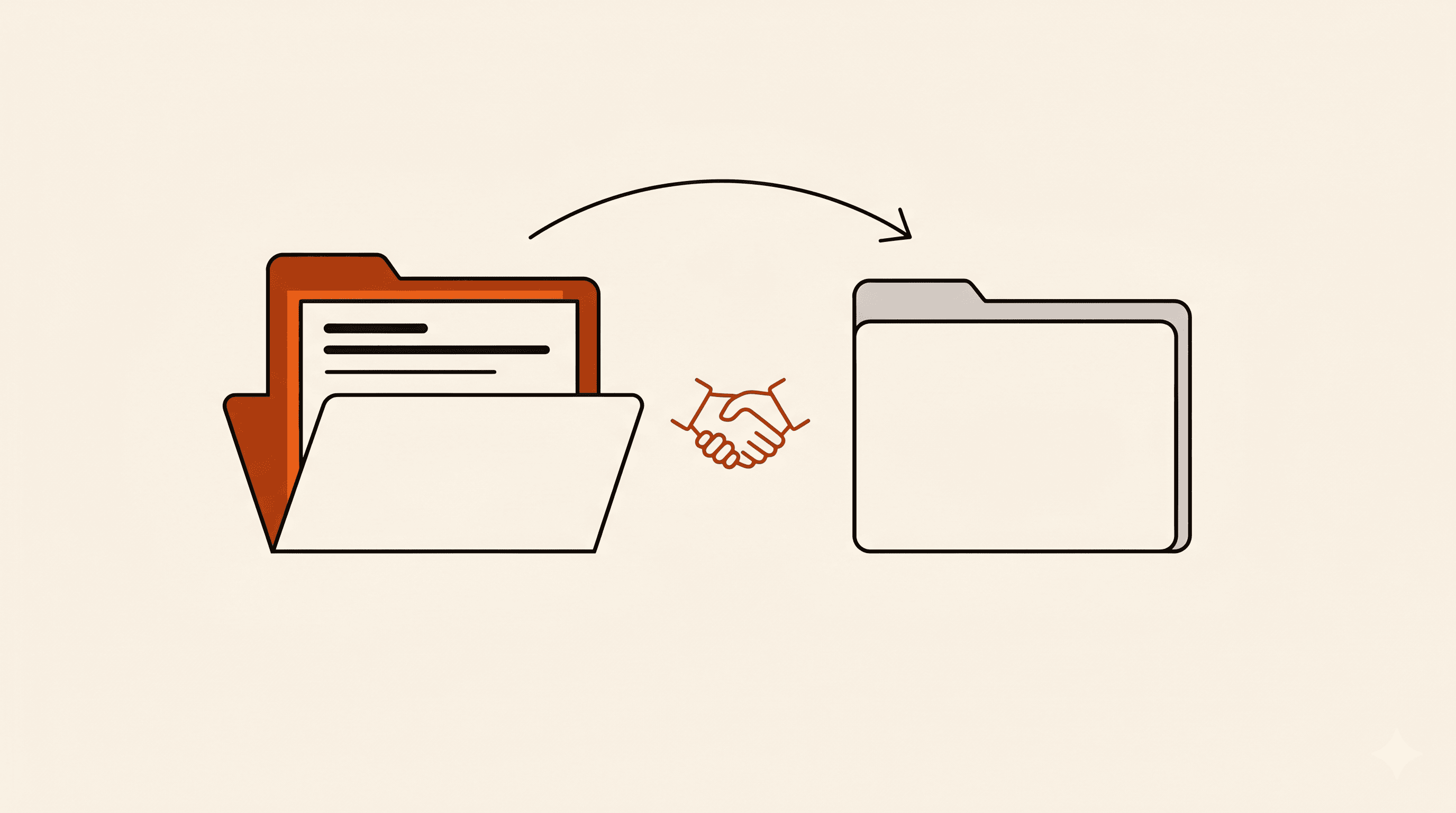 agency
 hr
hr real estate
Automation kits built on Google Drive.
Client Onboarding Kit
The onboarding flow every agency wishes they had before their first client was late with assets
Job Application Pipeline Kit
Knockout screening, resume routing, candidate tracking. ATS-free for under 10 hires a year.
Property Showing Request Kit
Showing requests that route to the right agent: property picker, zip-coded assignment, and auto-scheduling
Frequently asked
Questions I get before setting this up.
How do I save Jotform uploads to Google Drive?
In Jotform's Integrations tab, authorize Google Drive, choose a destination folder, and select whether to save uploaded files, the submission PDF, or both. On each submission, the chosen files push to that folder. Configure per-submission subfolders and field-based file names so they stay organized.
Why can't my team open the Jotform files in Google Drive?
Access is controlled by the Drive folder's sharing settings, not by Jotform. If teammates can't open the files, adjust who the destination folder is shared with. The integration just places files there; Drive decides who can see them.
Can Jotform create a separate Drive folder for each submission?
Yes. You can configure the integration to create a subfolder per submission and name it from a form field, which keeps each person's or entry's files together. Without that, everything lands in one flat folder, which gets hard to navigate on busy forms.
Is the file kept in Drive if I delete the Jotform submission?
Yes. The integration saves durable copies into your Drive storage, so files and the submission PDF survive even if the original submission is later removed from Jotform. That makes it a useful archive, though the files then count against your Drive storage quota.
Want this wired up without the reading?
Free 20-minute call. I'll tell you which workflow fits your Google Drive setup and what it would take to build, or you can send me the details first.
Book a free callOr send me the details·No form needed: just email hi@workflowautomationkits.com your form URL